How-To Center

Learn MAGNAT3.
Build Your Experience.

Everything you need to get started, explore the platform, and make the most of MAGNAT3.

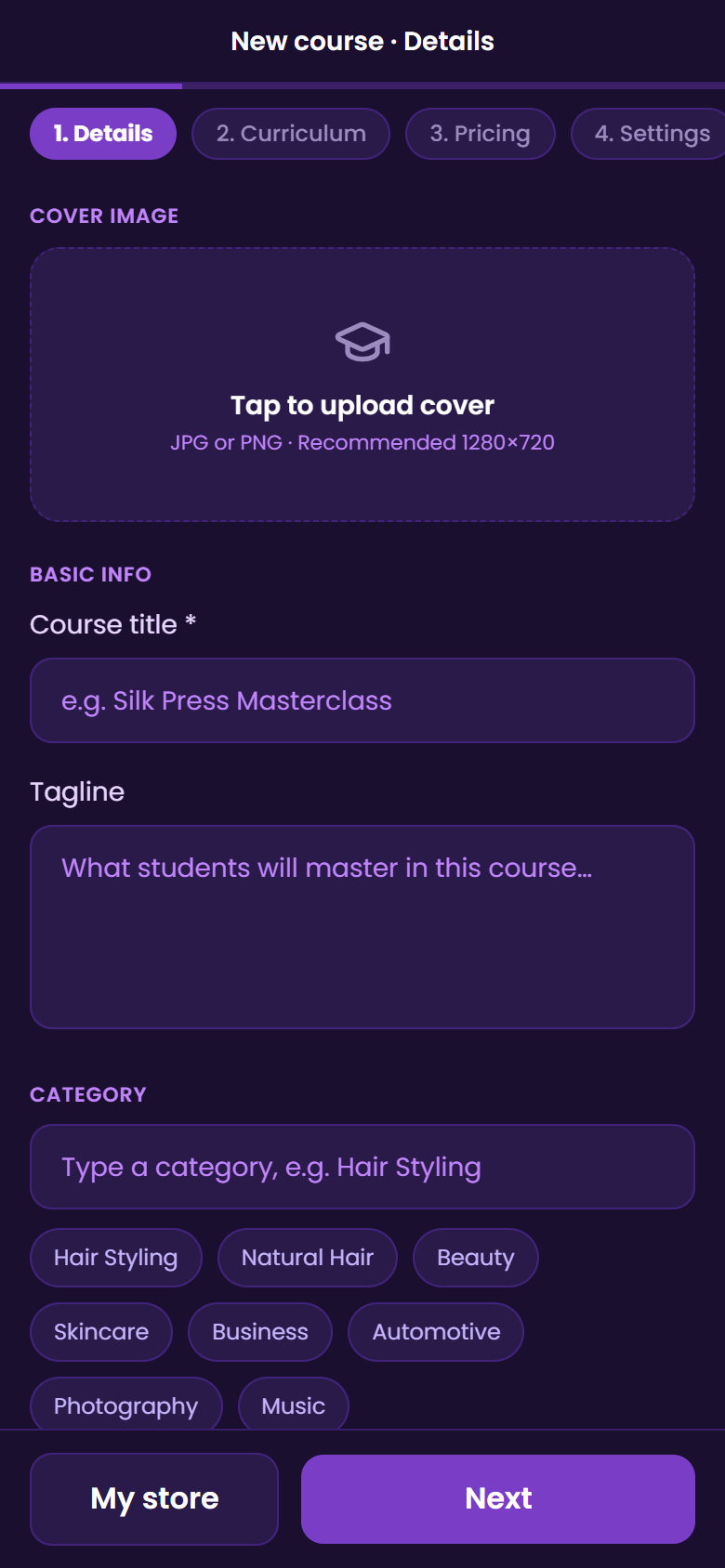
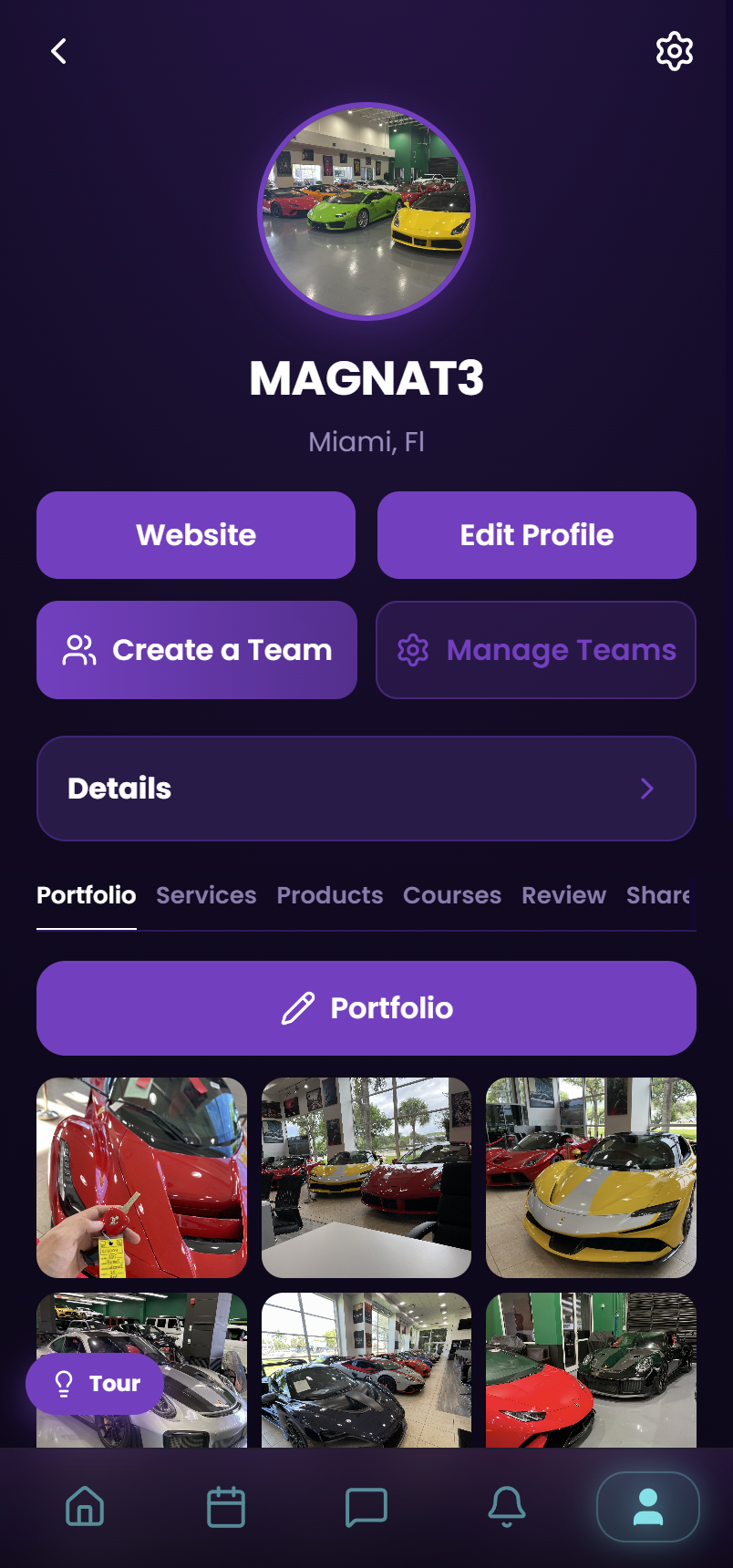
The MAGNAT3 entrepreneur dashboardA MAGNAT3 business profile
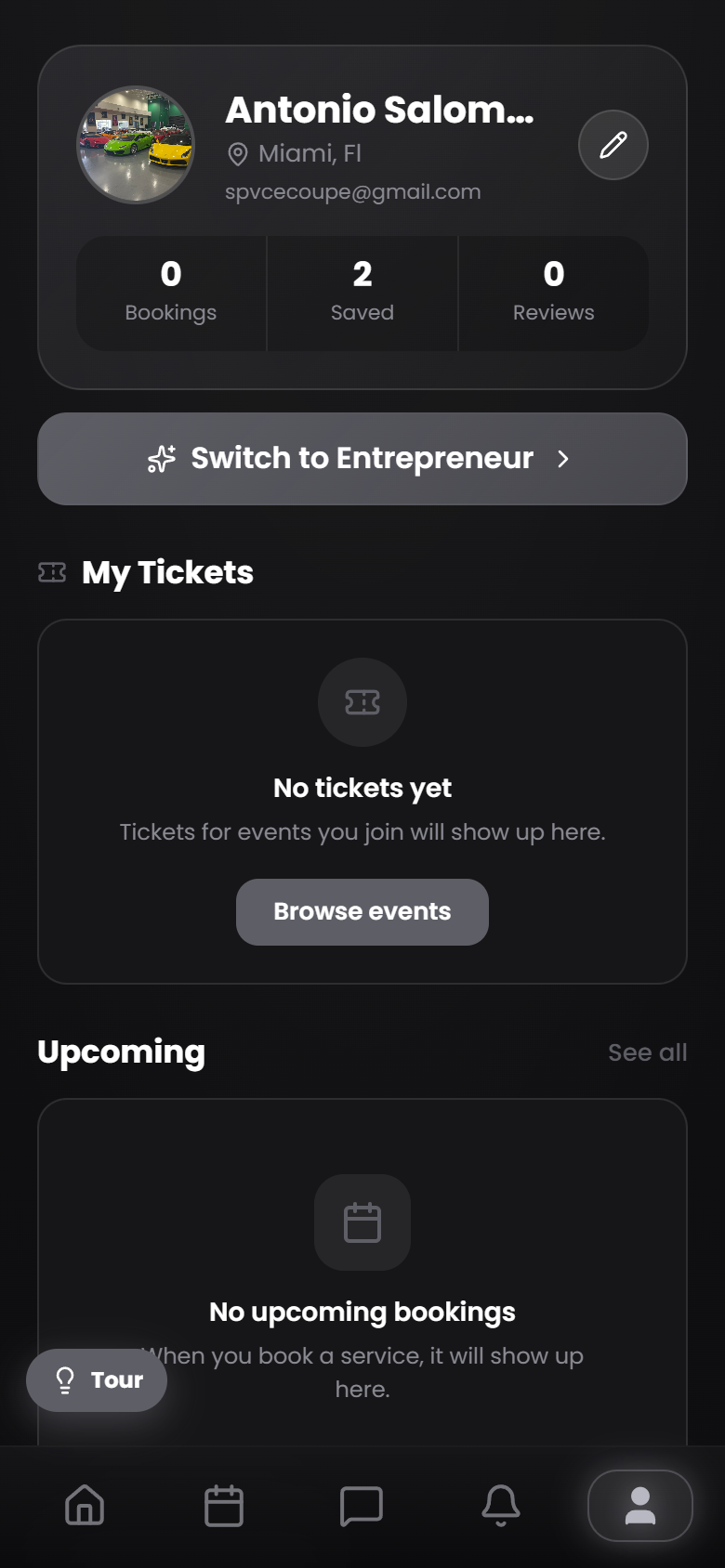
For Customers

Find. Book. Shop. Learn.

Discover services, products, courses, events and more — all in one place.

  • Find trusted entrepreneurs
  • Book services and appointments
  • Shop products and enroll in courses
  • Attend events
  • Leave reviews and build your network
Explore Customer Guides
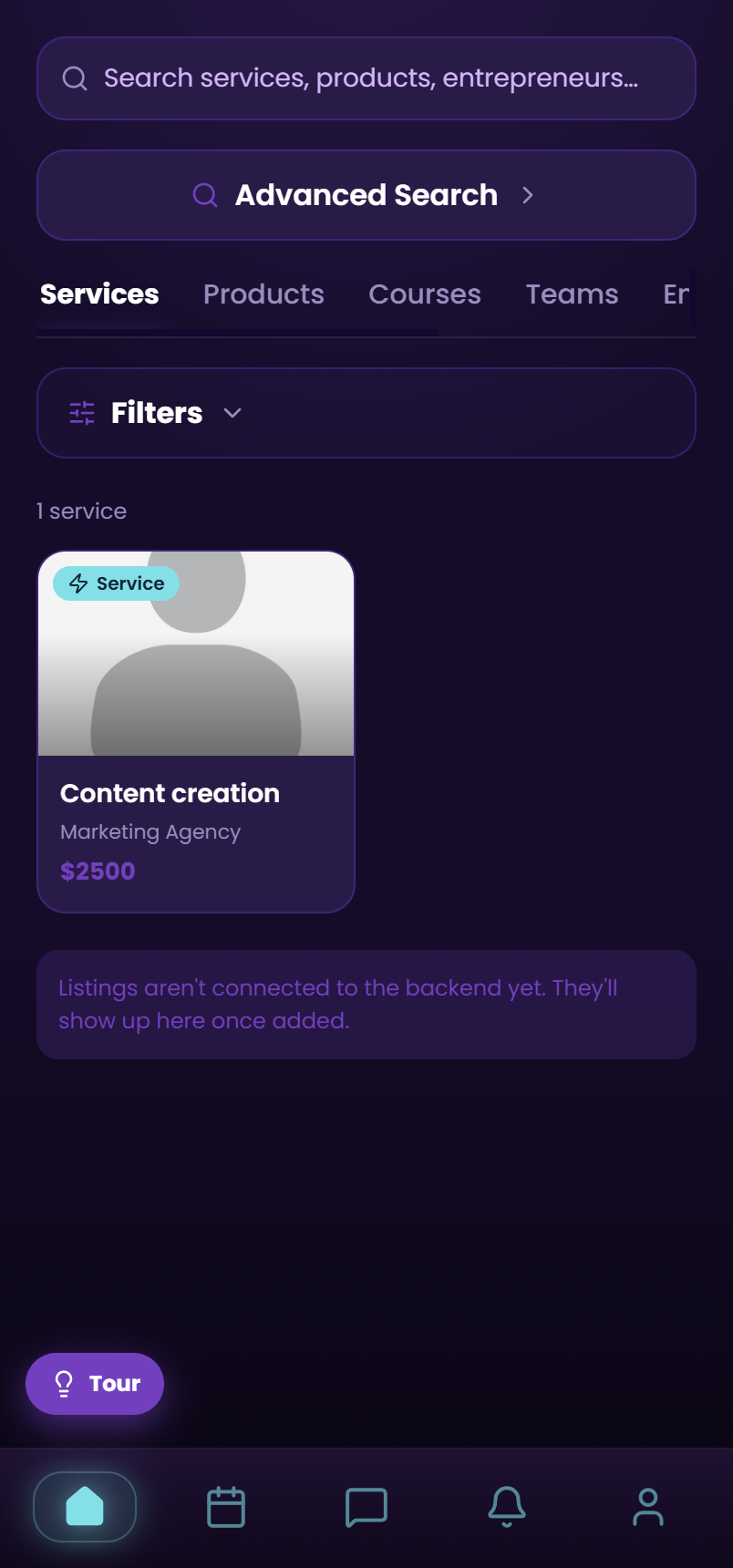
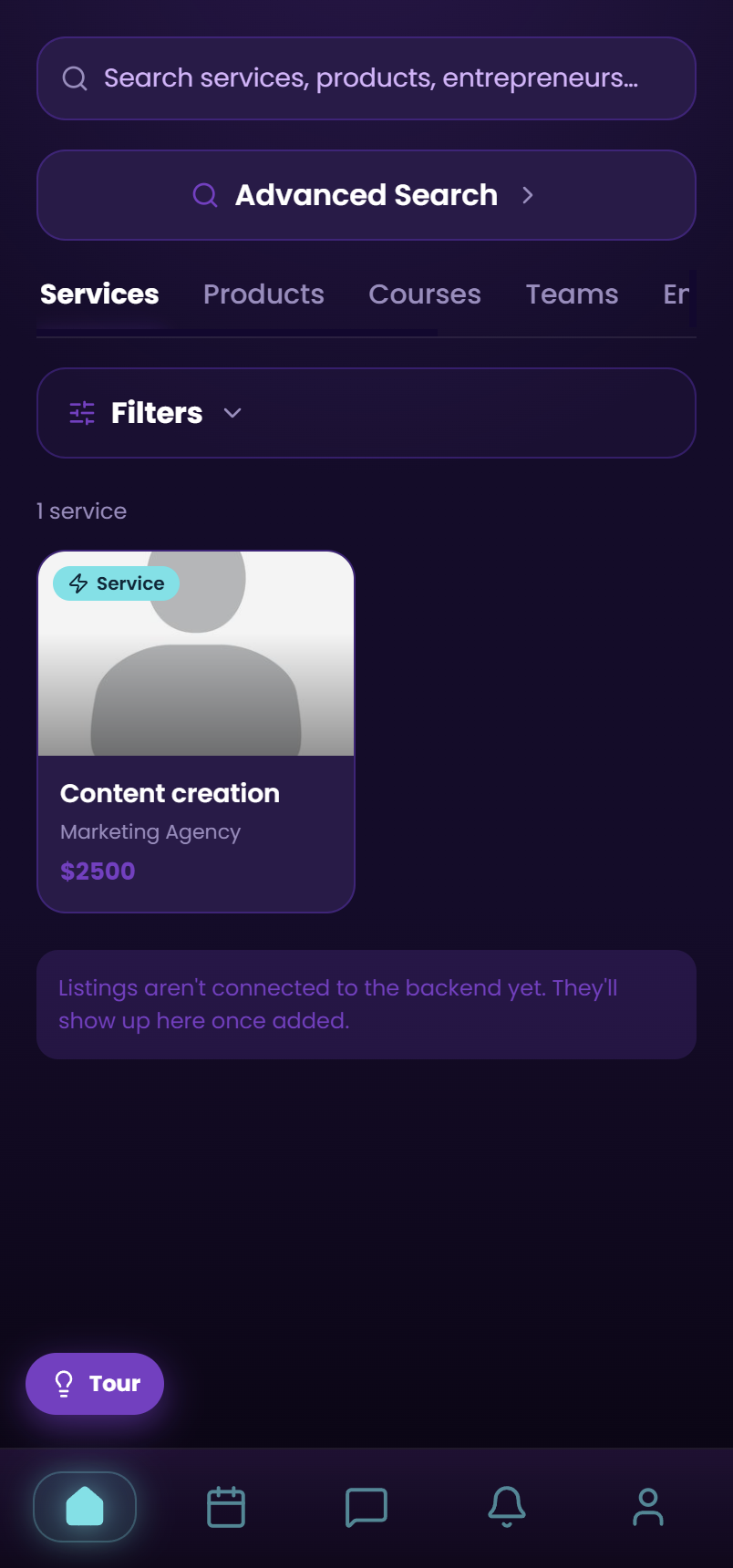
The MAGNAT3 customer home screen
For Entrepreneurs

List. Manage. Grow.

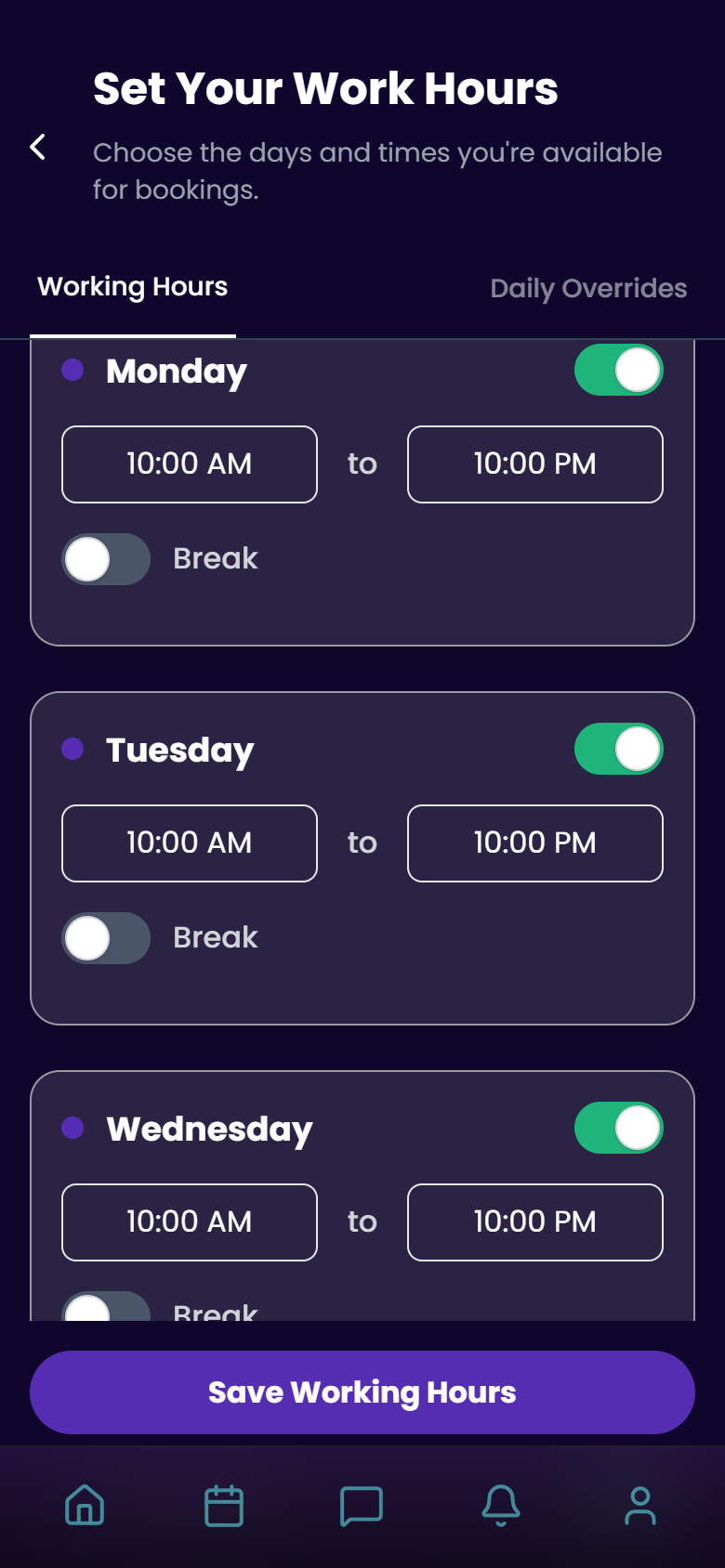
Create your business profile, list services, sell products, create courses, manage bookings, and build your team.

  • Create and customize your profile
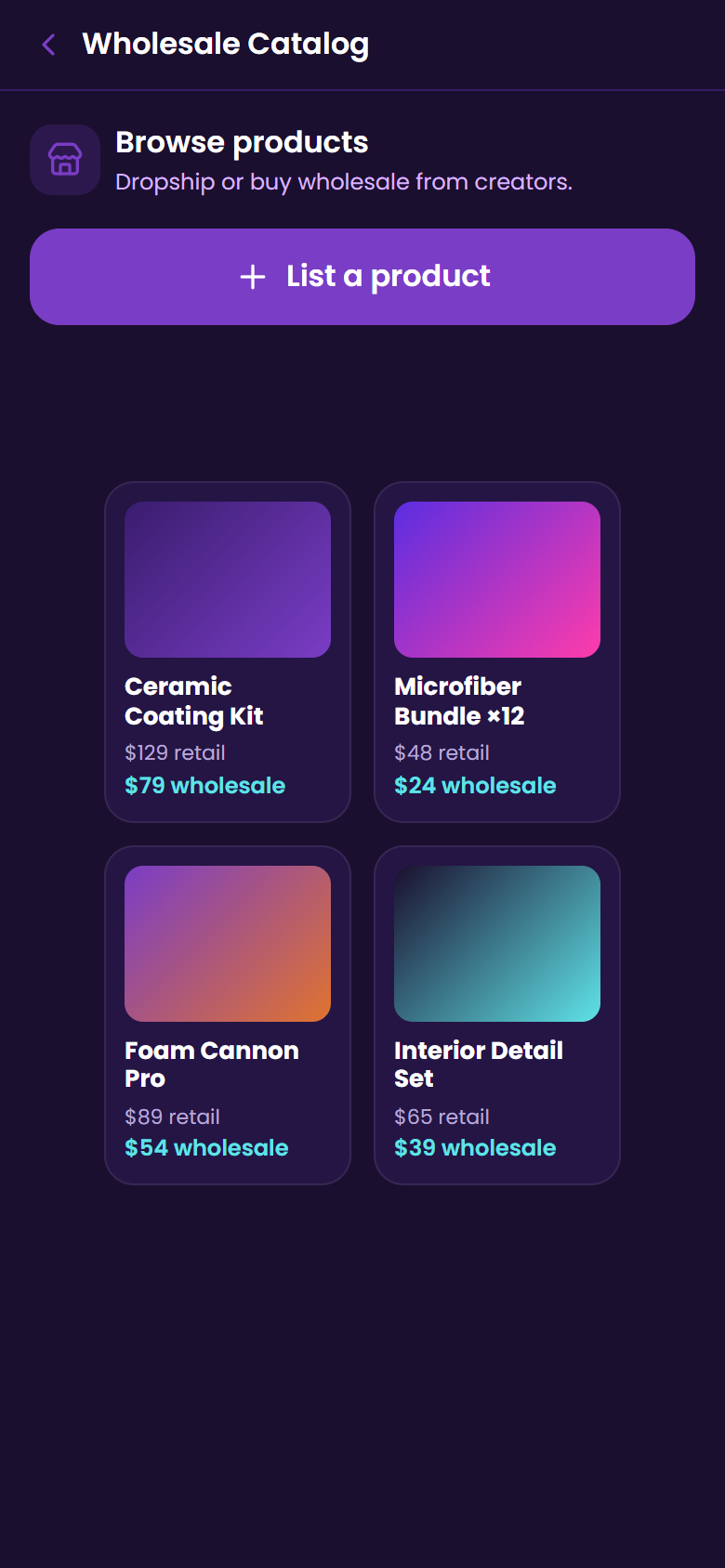
  • List services, products, and courses
  • Manage bookings and payments
  • Create custom invoices
  • Build teams and collaborate
Explore Entrepreneur Guides
A MAGNAT3 entrepreneur profile

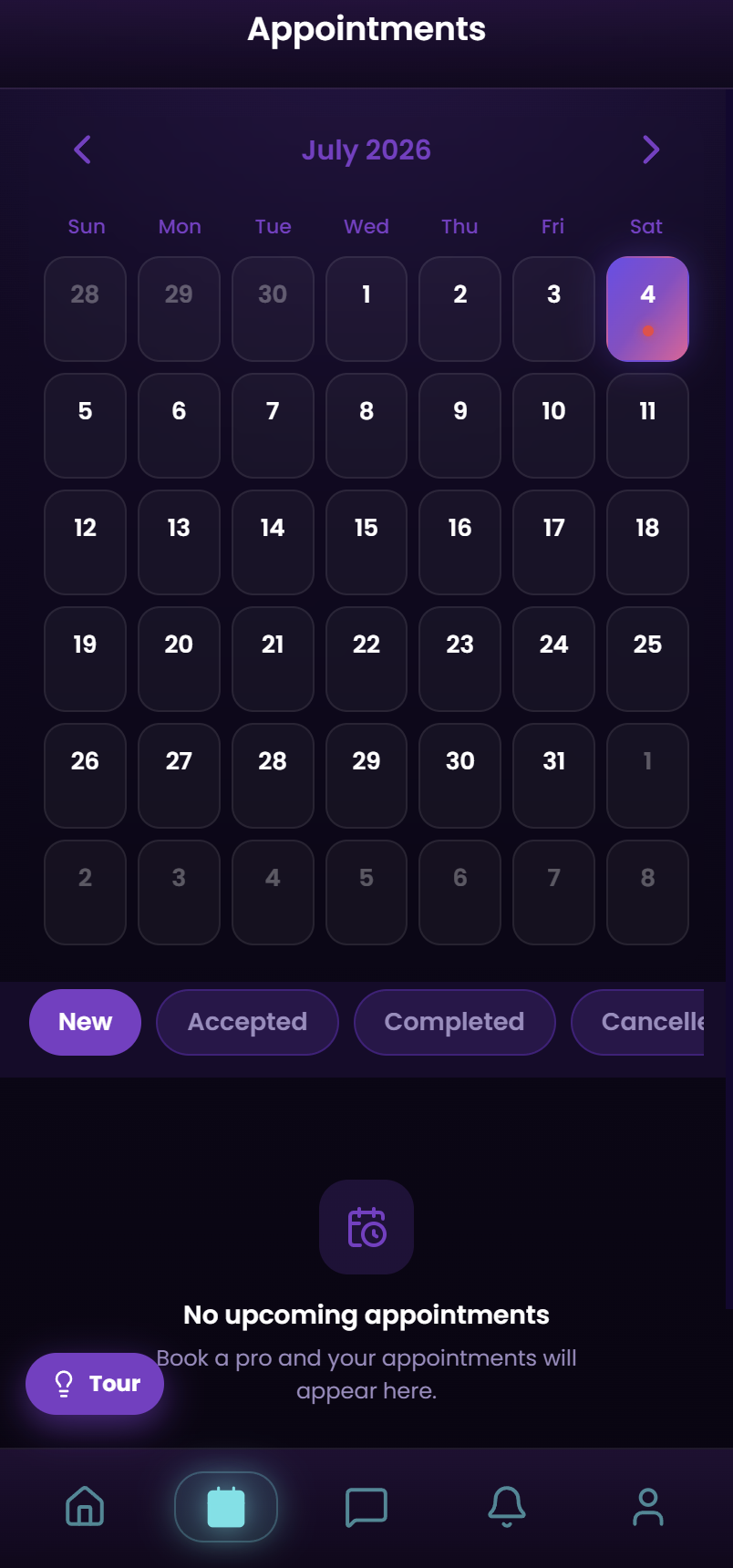
Explore the MAGNAT3 App

Take an interactive tour of the main features and see how everything works.

MAGNAT3 — Home
01 / 09

Home

Your home screen gives you quick access to services, products, courses, events and featured entrepreneurs near you.

  • Search for anything
  • Explore categories
  • See featured businesses
  • Access upcoming bookings

Step-by-Step Tutorials

Detailed guides to help you get started and master every feature.

View All Tutorials →

Every guide, start to finish

Choose your path, then follow along screen by screen.

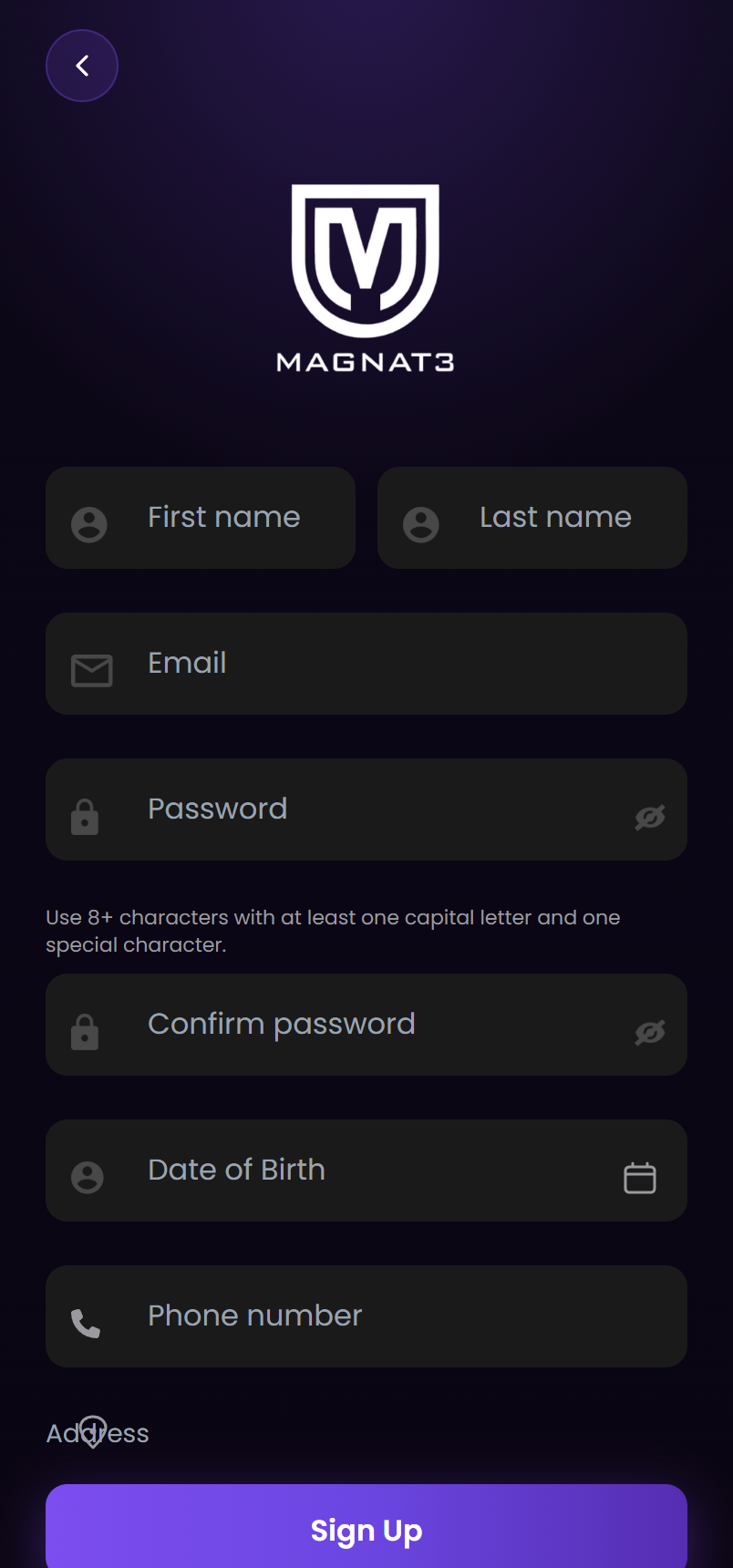
  1. Download MAGNAT3 from the App Store (or open the web app) and tap Sign up.
  2. Choose Customer when asked what brings you to MAGNAT3.
  3. Enter your name, email or phone, and a password.
  4. Verify your email or phone with the code we send you.
  5. Add a profile photo and your location so we can show pros near you.
Tip: You can switch to an Entrepreneur account any time from Settings — one login works for both.
  1. Tap Browse and search by service, industry, or location — or use filters for price, rating, and availability.
  2. Open a pro's profile to see their portfolio, reviews, services, and pricing.
  3. Pick the service you want and tap Book.
  4. Choose an available date and time from their calendar.
  5. Confirm and pay securely — you'll get a confirmation and reminders.
Tip: Not sure yet? Tap Message to ask a question before booking.
  1. Open Browse and switch to the Products tab.
  2. Open a listing to see photos, options, and seller info.
  3. Select any options (size, variant, bundle) and add to your cart.
  4. Check out and pay securely.
  5. Track your order and message the seller from your account.
  1. In Browse, switch to the Courses tab and open one that interests you.
  2. Review the curriculum, instructor, and what you'll learn.
  3. Pick a tier (Basic, Pro, or Premium) and purchase.
  4. Access your lessons any time from your account.
  1. Open the Messages / Network Hub tab.
  2. Under Main Biz, pin the pros you rely on by role — barber, mechanic, trainer, and more.
  3. Use Providers to jump back into any conversation instantly.
  4. Create Teams or a Project when a job needs more than one pro.
  1. Open the Events tab to browse upcoming workshops, classes, and experiences.
  2. Reserve your spot or buy a ticket — free or paid.
  3. Check in at the door with your digital ticket.
  4. Open Rooms to join a live audio/video conversation and ask questions in real time.
  1. See all your upcoming and past appointments in your account.
  2. Reschedule or cancel from the booking (per the pro's policy).
  3. After your service, leave a rating and review.
  4. Save your favorite pros so they're easy to rebook.

Frequently Asked Questions

Get answers to common questions about accounts, payments, bookings and more.

View FAQs →

Still Need Help?

Contact our support team and we’ll be happy to assist you.

Contact Support